
New User Sign-in Experience
As a new user you will need to start by signing in to your UNOH Portal for the first time. Open an internet browser and go to my.unoh.edu.
This will be the starting point to access most of your campus resources.
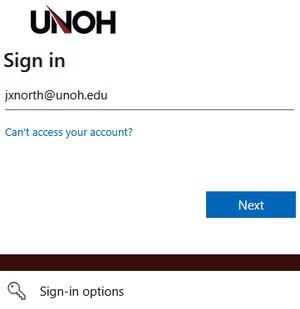
When signing in for the first time, you will be prompted to enter your user credentials.
Start by entering your full UNOH email address.
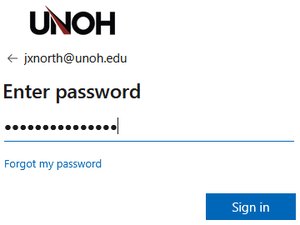
Followed by your temporary password.
Note: The temporary password is provided to new users as part of the onboarding process. If you misplaced or cannot find it, please reach out to the IT Department at 419-998-2701 (Monday-Friday 8am-5pm) or https://support.unoh.edu/ticket/ for assistance.
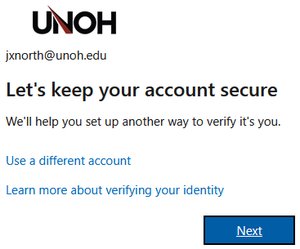
When prompted to keep your account secure, ensure that the email address listed is correct, and if so, select Next.
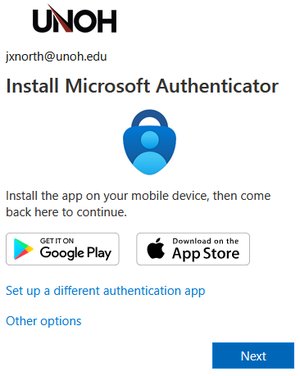
You will then be prompted to install the Microsoft Authenticator app on your mobile device. Install the app and select Next when you are ready to continue.
Note: This can only be set up on one device at a time and is used to securely sign in to various UNOH services.
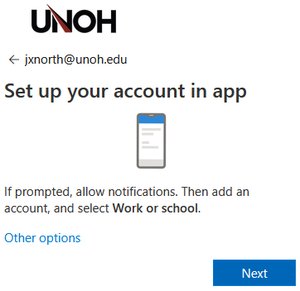
Select Next again.
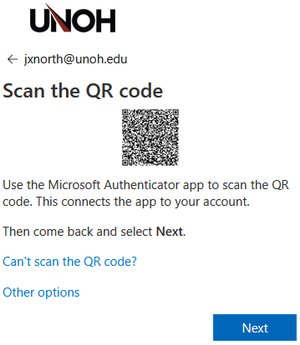
The easiest way to set up the Microsoft Authenticator is by scanning the QR code presented to you.
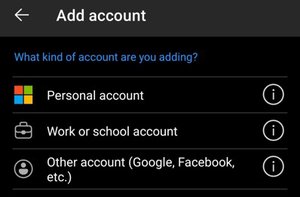
When opening the app for the first time, you may be prompted to add a new account.
Select add new Work or School Account.
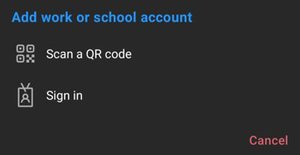
Then select Scan a QR code.
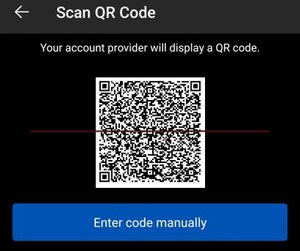
Align the code within the square frame.
If it does not automatically continue, select Enter Code Manually.
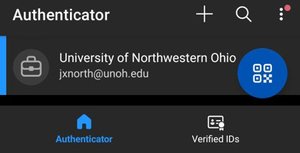
You should receive a prompt that says the sign in was successful.
On the main page of the Microsoft Authenticator, you should now see an account that says University of Northwestern Ohio with your UNOH email listed underneath.
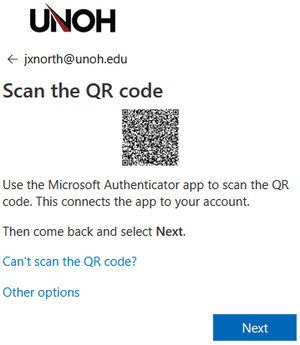
Once you have added your UNOH account to the Microsoft Authenticator, select Next to continue signing in to my.unoh.edu
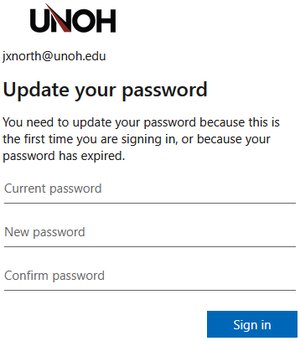
You should then be prompted to enter the temporary password that you’ve been assigned, along with creating a new password.
Enter the temporary password in the Current Password field and then enter your new password two times on the New Password and Confirm Password fields.
Note: The requirements for creating a password are as follows;
- 15-character minimum
- At least one Number, Uppercase Letter, and Symbol
- No references to your name or anything related to UNOH
- Avoid passwords that you are already using on other sites
You can find additional password guidance at https://support.unoh.edu/password.
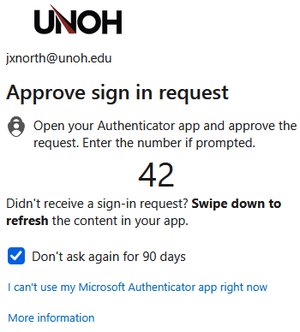
Once you have successfully signed in, a 2-digit code will appear. You should receive a push notification on your mobile device shortly after.
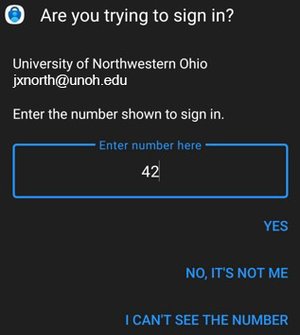
Enter the 2-digit code and select Yes.
Enter the 2-digit number listed on the screen into the Microsoft Authenticator and select Yes.
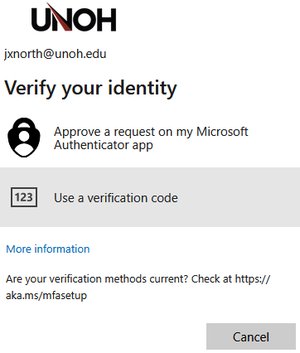
If you have any trouble with this step, you can select I can’t use my Microsoft Authenticator app right now and choose the Use a Verification Code option.
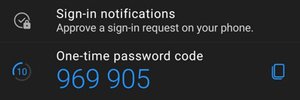
In the Microsoft Authenticator app, select your UNOH account and view the 6-digit code listed.
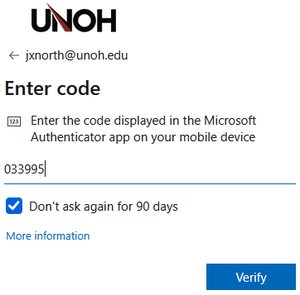
Enter the code as listed and select Verify.
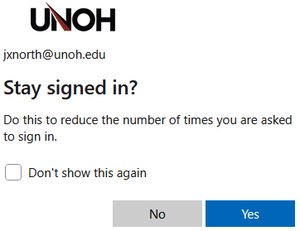
You will then be prompted to Stay Signed In.
This step is optional, but if you trust the device, you are using then we would recommend selecting Yes to avoid having to sign in more than necessary.
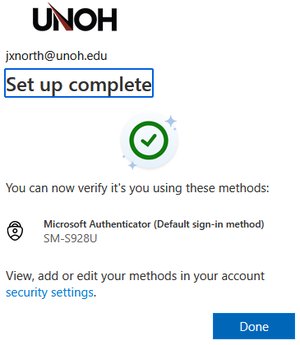
If you receive the Set Up Complete page, then you have successfully completed the sign in process to your UNOH User Portal.
Select Done to continue. Alternatively, you can select Security Settings to view your account settings.
From here you can set up additional authentication methods and change your password.
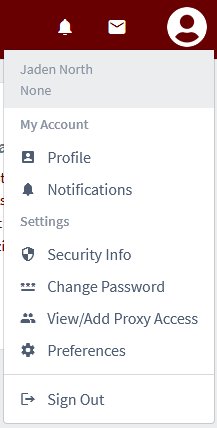
If you would like to access your Security Settings later, you can select your student profile picture at the top right, and then Security Info.
Select Add Sign-In Method.

There are several options to choose from, but we recommend setting up a Passkey.
Passkeys allow you to sign-in without entering a password and by scanning a QR code with the Microsoft Authenticator application.
Note: You can also set up a phone number to have texts sent; however, Microsoft is planning on removing this functionality February 1, 2027, so avoid using it.
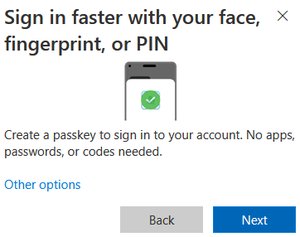
When prompted, select Next.
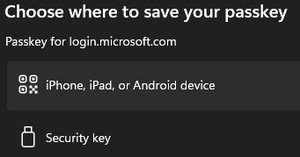
Select iPhone, iPad, or Android device.
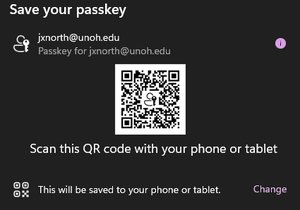
Scan the QR code with the Microsoft Authenticator application.
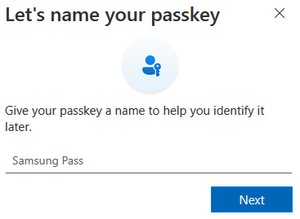
Give your Passkey a name.
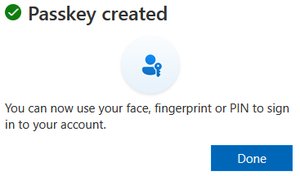
Your passkey has now been created, select Done to finish.
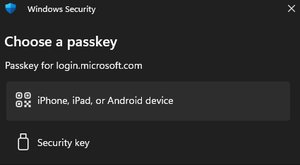
When signing into your account, select iPhone, iPad, or Android device.
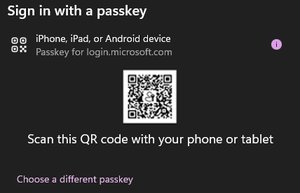
Use the Microsoft Authenticator application to scan the QR code.
Select the account on your mobile device to complete the sign in.
Note: To use a Passkey to sign in, the computer must have Bluetooth capabilities. If the device cannot use a Passkey to sign in, select Cancel and sign in with your password instead.