
Microsoft Authentication Changes
Microsoft has announced that it is moving away from SMS text messages and phone calls as standard authentication methods for single sign-on. Beginning September 1, 2026, Microsoft will make passkeys the default authentication experience for users who currently rely on SMS or voice verification. Microsoft-provided SMS and voice authentication are scheduled to be retired on February 1, 2027.
This change is part of Microsoft’s broader effort to improve account security and reduce the risk of phishing, credential theft, SIM-swapping, and other attacks that can target text message codes or phone call verification. Passkeys are considered a stronger, phishing-resistant sign-in method because they use a trusted device, such as a phone or computer, along with a secure unlock method such as a PIN, fingerprint, or facial recognition.
What You Need to Do
If you are prompted to register a passkey during sign-in, please follow the on-screen instructions. Setting up a passkey now will help ensure continued access to Microsoft 365 services, including Outlook, Teams, OneDrive, and other University systems that use Microsoft sign-in.
How to Set Up a Passkey
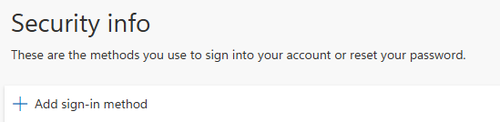
- Go to https://mysignins.microsoft.com/security-info and sign in with your university account.
- Select Add sign-in method.
- Choose Passkey or Passkey in Microsoft Authenticator, depending on the options available to you.
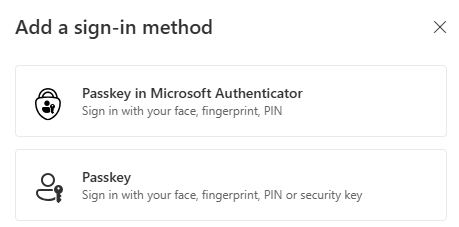
- Follow the prompts to save the passkey to your device, Microsoft Authenticator, a supported password manager, or a security key.
- When prompted, confirm your identity using your device’s secure unlock method, such as a PIN, fingerprint, or facial recognition.
- After registration is complete, use the passkey option the next time you sign in when prompted.
Note: Microsoft Authenticator will continue to function as a supported authentication option. Users who already use Microsoft Authenticator for push notifications, number matching, or passkeys should be able to continue using the app as directed. The primary change is that Microsoft is moving away from SMS text messages and phone-call verification as authentication methods.
Need Help?
Additional instructions and reminders will be shared as Microsoft continues this transition. If you have questions or experience difficulty setting up a passkey, please submit a ticket to the IT Help Desk at https://support.unoh.edu/ticket or call for assistance at 419-998-2701.