Encrypting Folders with 7-Zip
Encrypting Folders Guide
This method supports AES-256 Encryption and is compatible with most common file compression technologies.
7-Zip is required for both encrypting the folder and extracting the folder
Encrypting
- Right click the folder that needs encrypted and select Show more options

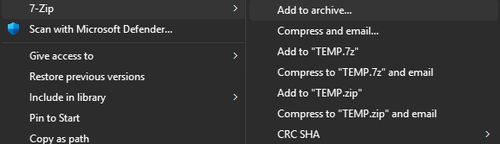
- Navigate to 7-Zip, then select the Add to archive… option
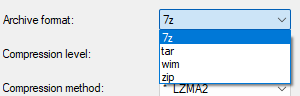
- The default file extension for 7-Zip is .7z, however you can change this to .tar, .wim, or .zip if needed
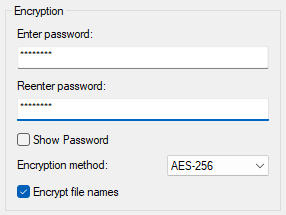
- In the bottom right Encryption section, enter the password that you wish to encrypt the folder with
- Make sure that AES-256 is the selected encryption method
- Select the Encrypt file names option
Extracting
- Right click the encrypted folder and select Show more options
- Navigate to 7-Zip
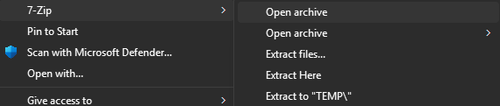
- From here, you can select the Open archive option to view the contents of the folder, and then extract
- Alternatively, you can choose Extract files… to choose where to extract the folder, or Extract Here to extract the folder in the same location the encrypted folder is in
- Enter the password when prompted