Encrypting a PDF Document
Encrypting a new PDF with Microsoft Word
- Select File in the top left

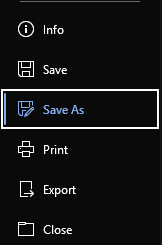

- Select the location that you wish to save the document
- Change the file type to .PDF, then select the Options button
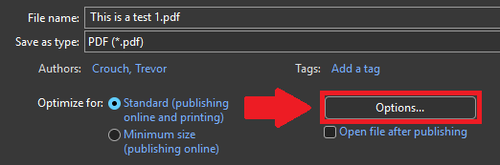
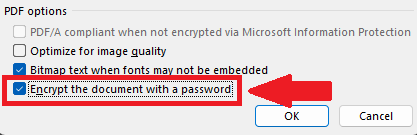
- Make sure that the Encrypt the document with a password option is selected
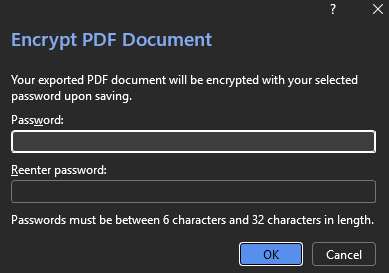
- Enter the password that you want to encrypt the file with

- Test that the encryption worked by opening the file.
- If it prompts a password, then the encryption is complete
Encrypting an existing PDF with Word
- Right click the PDF, hover your mouse cursor over the Open With option
- If Microsoft Word is not a default option, then select Choose another app
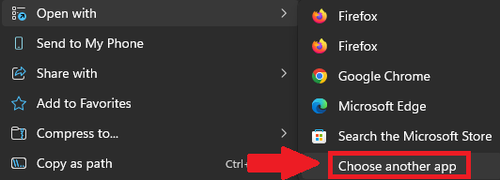
- Select Word, then select Just once

- From this point, you will need to save a copy of this PDF
- To do so, follow the steps outlined in Creating an Encrypted PDF above
Encrypting an existing PDF with Adobe Protect
NOTE: Does not require an Acrobat license

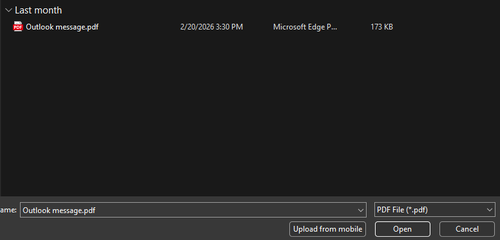
- Navigate to the PDF file you wish to encrypt, then select Open
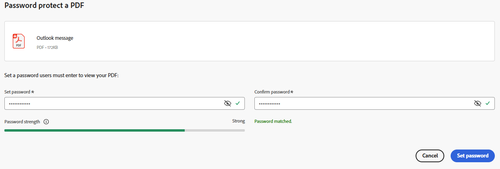
- Enter the password that you want to encrypt the PDF within both fields. Make sure to set a strong password, and make sure each field matches
- When you are finished select the Set password button
- Wait for Adobe to finish encrypting
- If prompted, enter the password that you just set
- Select the Download option in the top right

- Make sure to open the downloaded file to test that the password works correctly